Release Notes - v16.2
Embed SQL Reports
Section titled “Embed SQL Reports”SQL reports can now be embedded just like Model and Table reports, making it easier to share and integrate SQL-based reports across your applications.
How to Embed an SQL Report
Section titled “How to Embed an SQL Report”- Open the SQL report.
- Click the three-dot menu in the top-right corner of the canvas.
- Select Embed Report.
- Configure the required embedding options.
- Click Update to save the configuration.
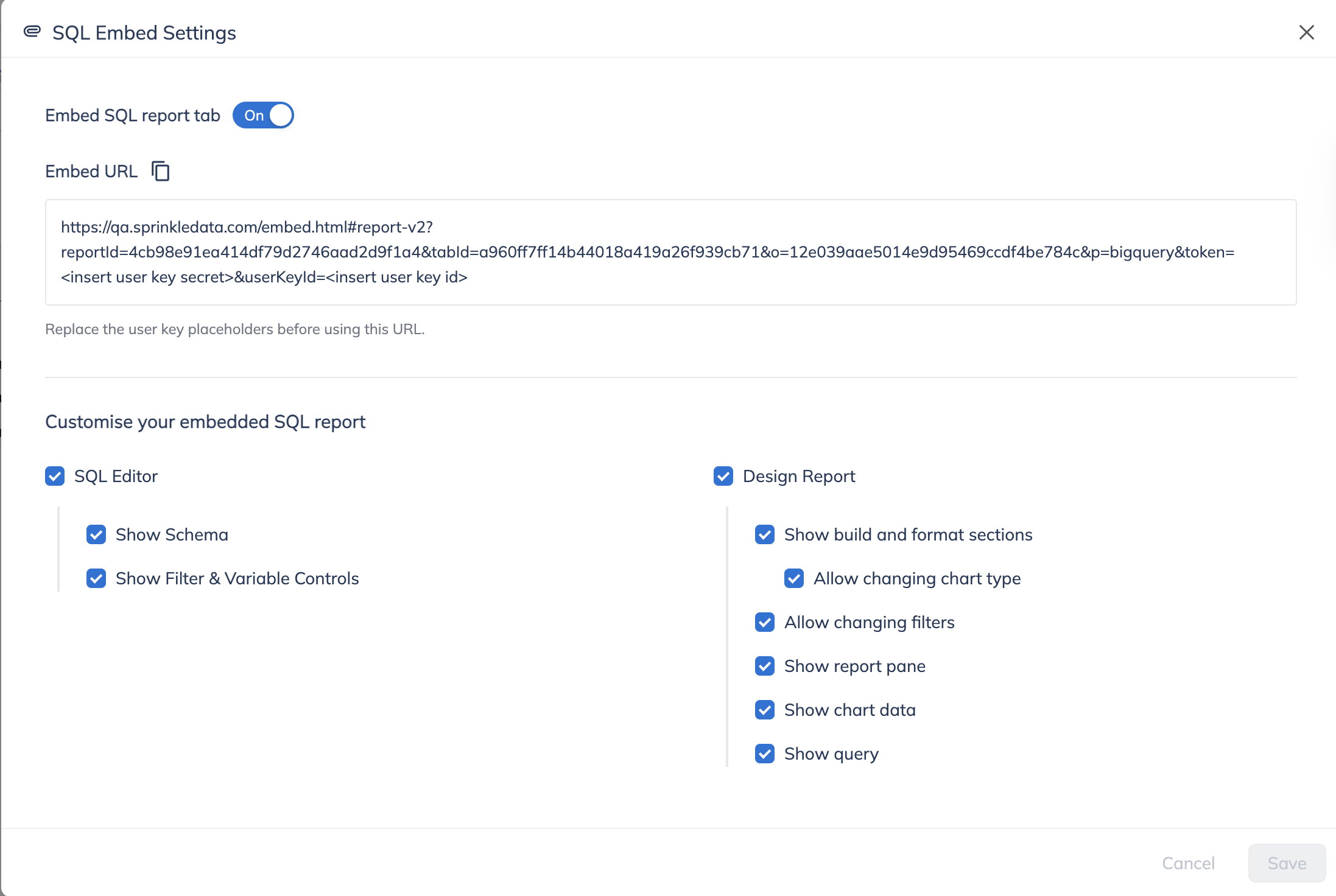
You can also control the level of access provided to embedded users. In the permissions section, you can choose whether users should have access to the SQL Editor, Design Report, or both, based on your requirements.
Configurable Report Fetch Limit
Section titled “Configurable Report Fetch Limit”The report fetch limit is now configurable, giving you greater control over the amount of data retrieved when running a report.
Previously, the fetch limit was fixed at 5,000 records. You can now configure the fetch limit anywhere between 1 and 50,000 records.
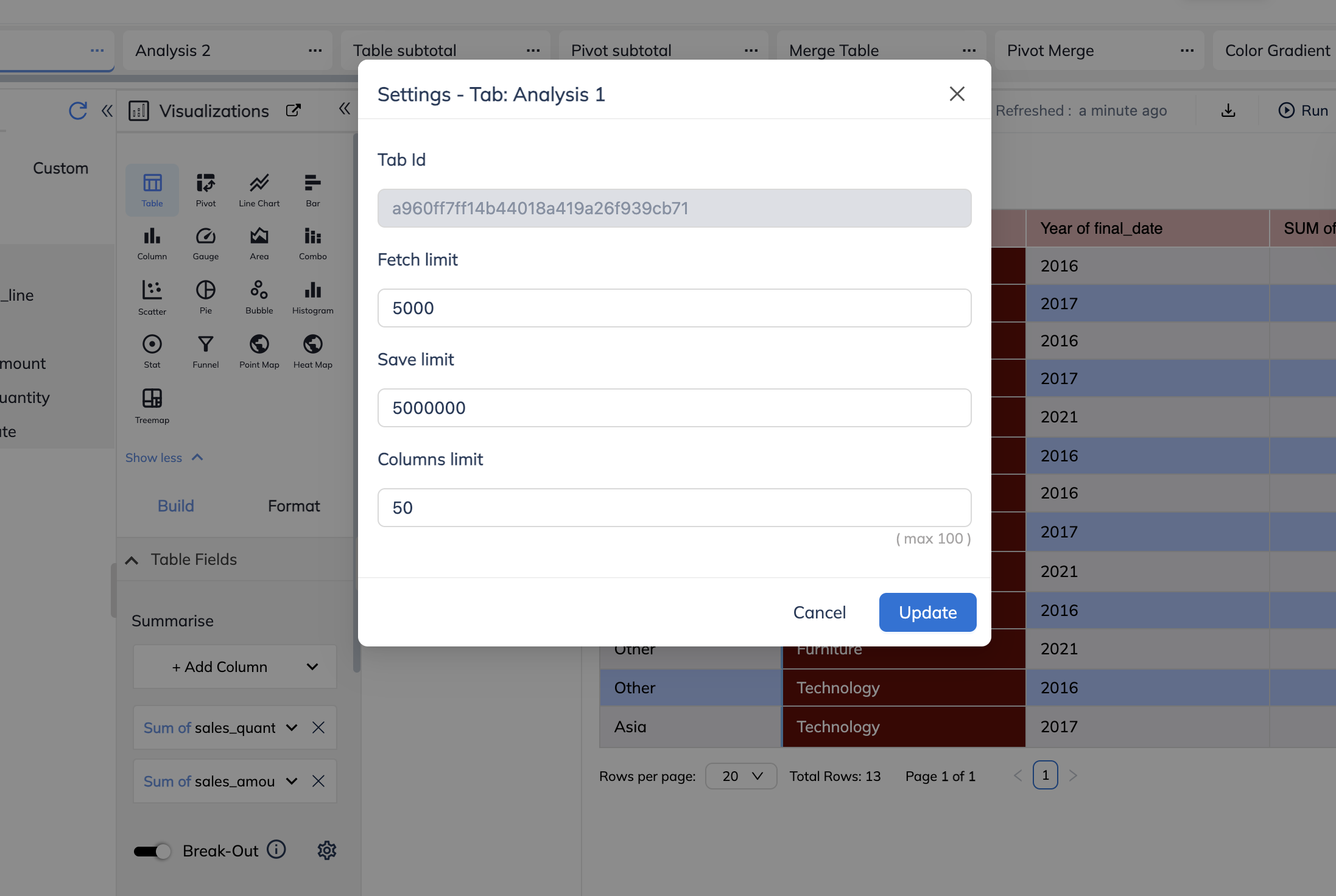
How to Configure the Fetch Limit
Section titled “How to Configure the Fetch Limit”- Open the report.
- Click the three-dot menu in the top-right corner of the canvas.
- Select Settings.
- Locate the Fetch Limit field.
- Enter a value between 1 and 50,000.
- Click Update.
The configured fetch limit will be applied to the report.
Scheduled Entity Indicators in Linear Explorer
Section titled “Scheduled Entity Indicators in Linear Explorer”Linear Explorer now provides better visibility into scheduled entities.
Previously, there was no clear indication of whether an entity in Linear Explorer was scheduled or unscheduled. Now, when you search for a node in Linear Explorer, the schedule frequency is displayed directly on the node for scheduled entities.
This makes it easier to identify scheduled entities and understand their execution frequency at a glance.
Redshift JSON Shape Configuration
Section titled “Redshift JSON Shape Configuration”To address Redshift’s limitation of 65,535 bytes for String values in the SUPER data type, we have introduced a new JSON Shape configuration for ingestion.
When configuring a JSON column, users can now specify the expected JSON shape:
- Array
- Map
- Both
This allows users to define the type of JSON value their column contains and enables ingestion of larger JSON values into Redshift.
Column-Level JSON Shape Configuration
Section titled “Column-Level JSON Shape Configuration”Users can also configure the JSON shape at the individual column level. Select the required columns and assign the desired JSON shape based on the data they contain.
If a JSON shape is selected for a specific column, the column-level selection takes precedence over the previously configured selection.
Salesforce Improvements
Section titled “Salesforce Improvements”OAuth 2.0 Support
Section titled “OAuth 2.0 Support”Salesforce connections now support OAuth 2.0 authentication, providing an updated and more secure authentication option for connecting to Salesforce.
Exclude Columns
Section titled “Exclude Columns”Users can now choose which columns to exclude when ingesting Salesforce data.
This provides greater control over the data ingested from Salesforce and allows users to exclude columns that are not required for their use case.
Incremental Ingestion
Section titled “Incremental Ingestion”Incremental ingestion is now available for Salesforce connections.
Users can configure incremental ingestion, allowing only newly added or updated data to be ingested instead of reprocessing the entire dataset.
This helps optimize ingestion workflows and reduces unnecessary data processing.